 Smart
SmartGetting started with SmartGrader
Easy, fast and secure...
Everything you need to understand, to set up, and run SmartGrader in your school — from first install to your first exam.
What is SmartGrader?
SmartGrader is a secure, offline-first computer-based testing platform built for African schools. Exams run entirely on your school's local WiFi — no internet required during the exam.
The principal's device acts as the central authority. Students connect from browsers on any device in the hall. Results are computed instantly, automatically.
It is designed for schools with unreliable internet, limited budgets, and real concerns about exam malpractice.
Runs on local WiFi only
Scales with your hall size
Each session is unique
Auto-graded on submission
Everything your school needs for CBT, in just three things.
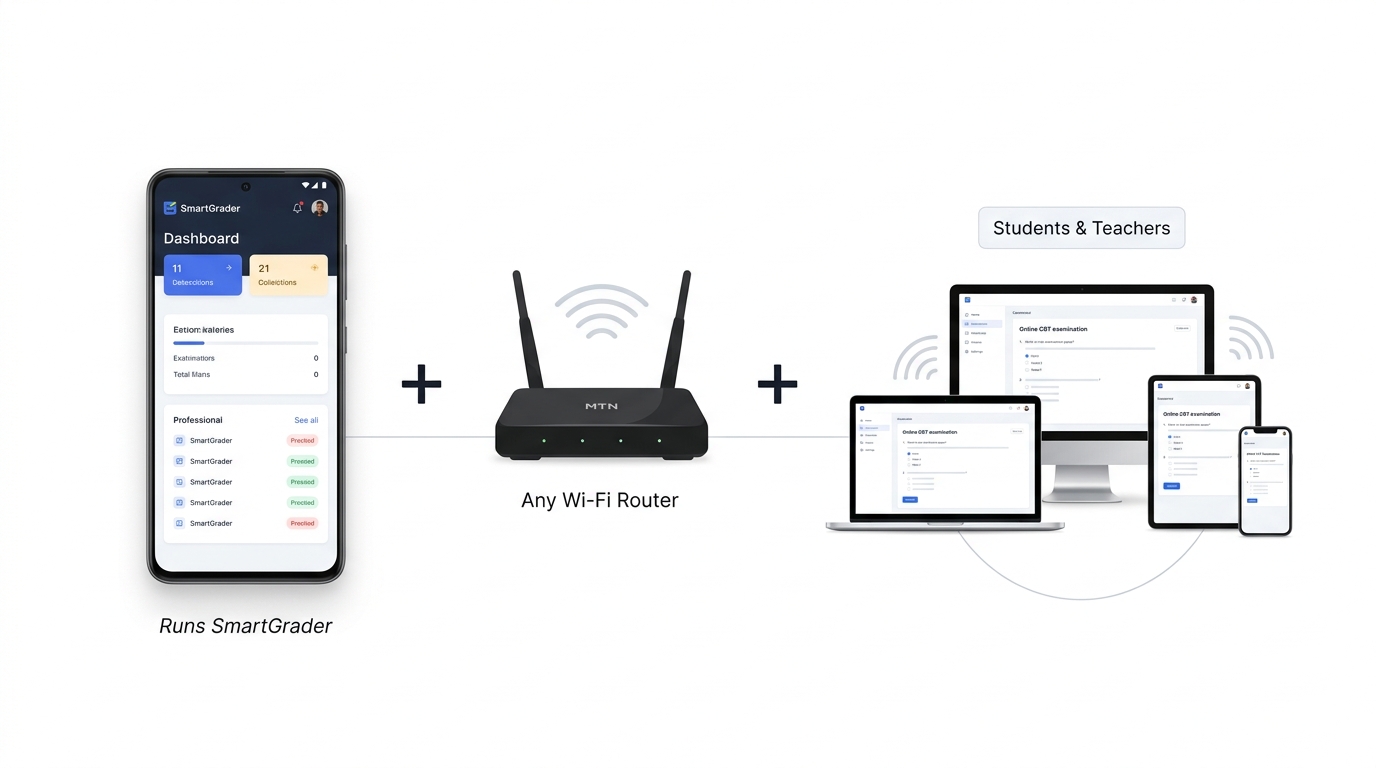
No server room. No rack hardware. No IT engineer on standby. If your school already has these three things, you're ready to run exams today.
Android Phone
Runs SmartGrader
Any Wi-Fi Router
Connects everyone together
Student & Teacher Devices
Phones · laptops · tablets · PCs
- Install SmartGrader on any Android phone to power your examination server.
- Connect it to your existing Wi-Fi router. No special networking required.
- Students and teachers join instantly using phones, laptops, tablets, or desktop computers.
- No dedicated servers. No expensive hardware. Just launch exams and start grading.
See it running
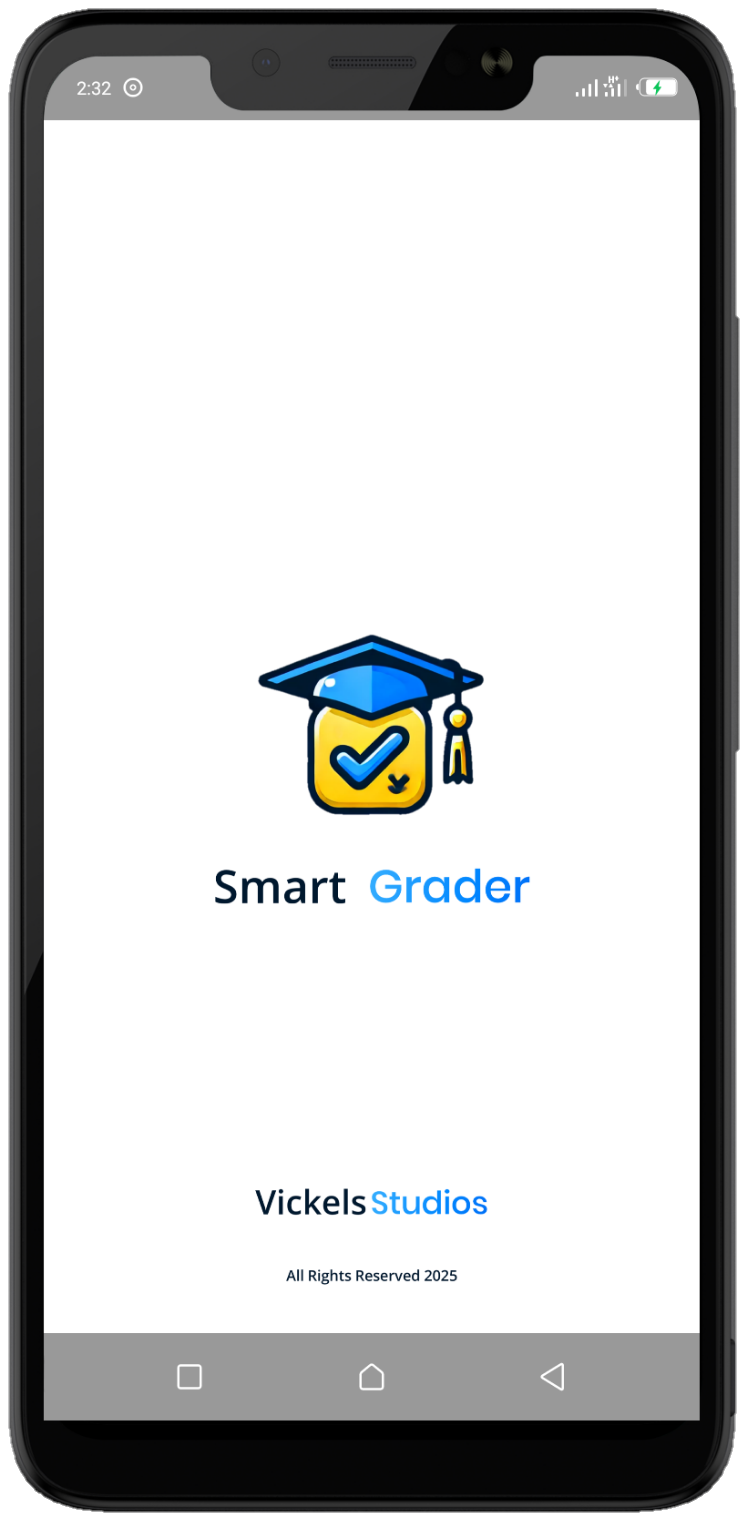
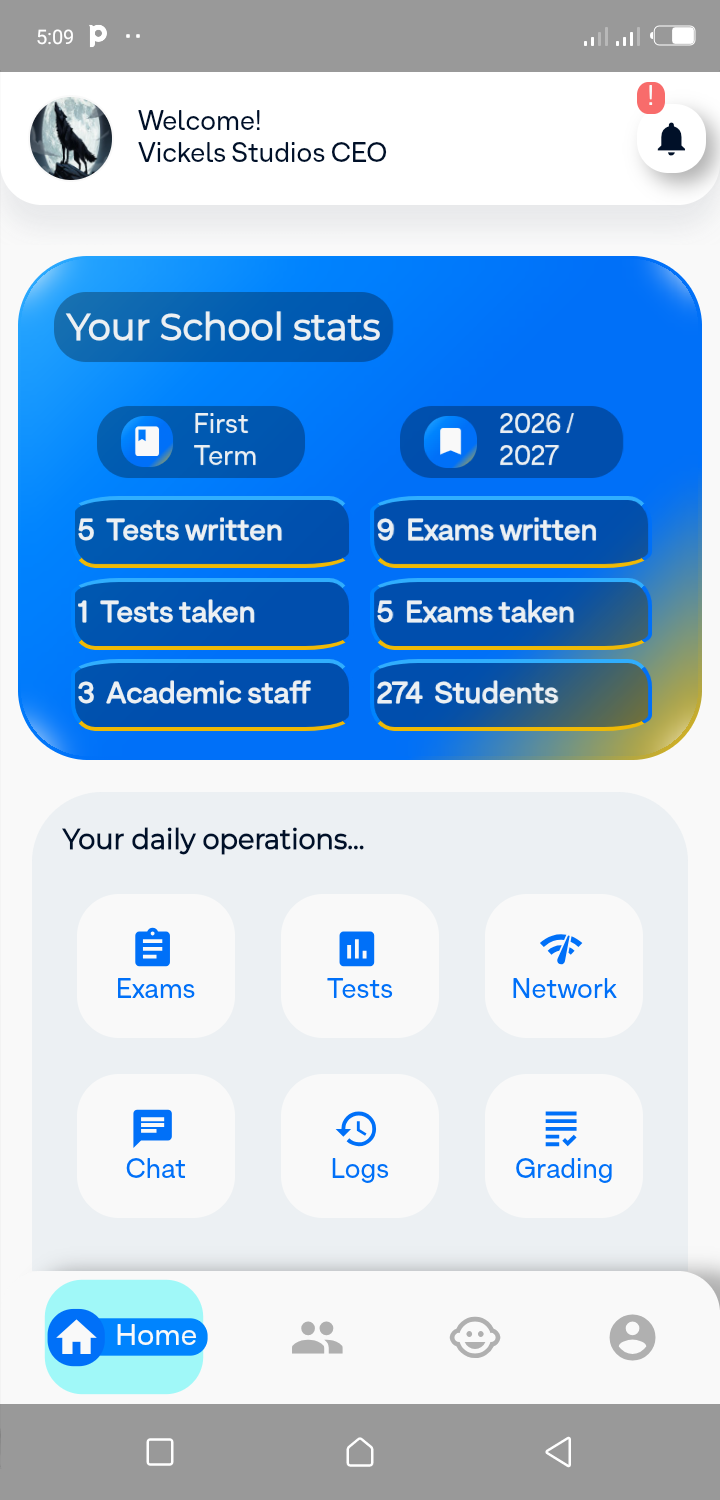
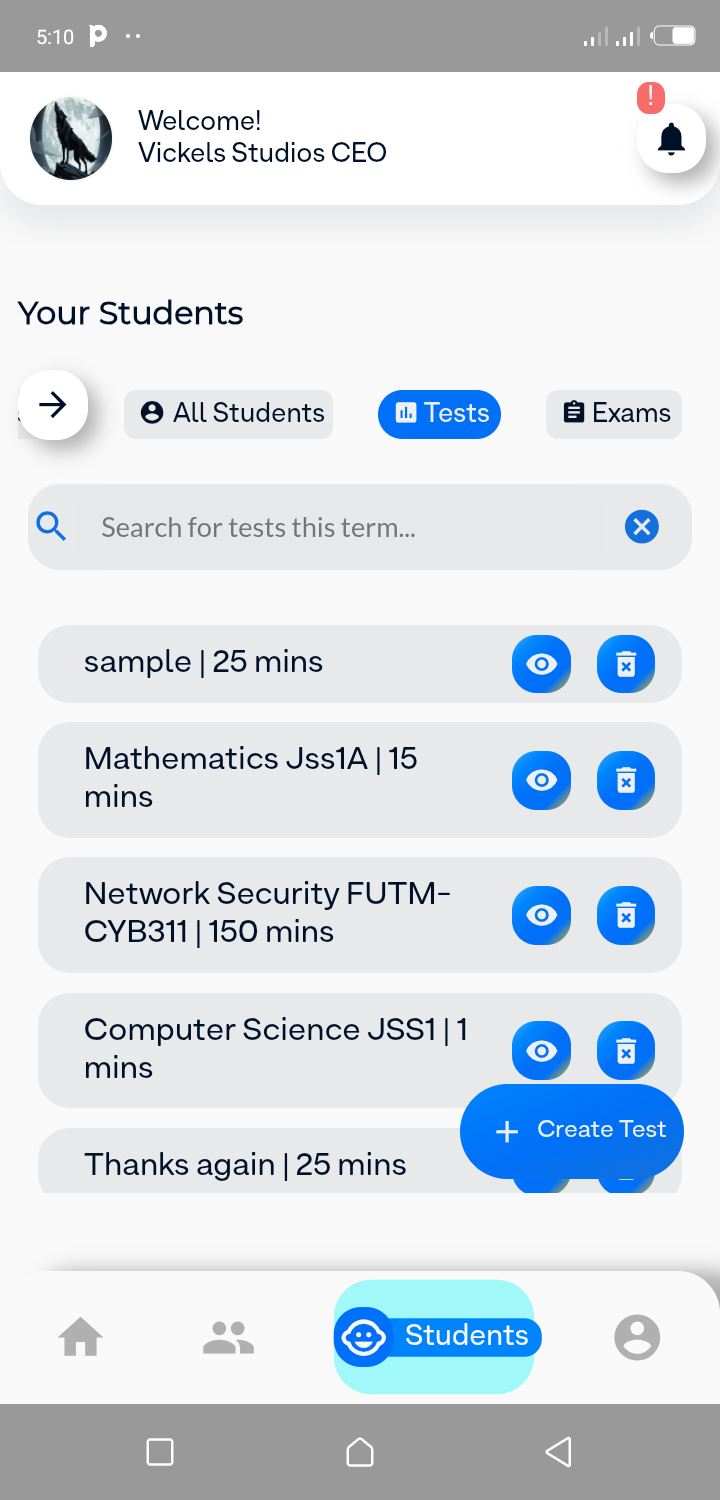
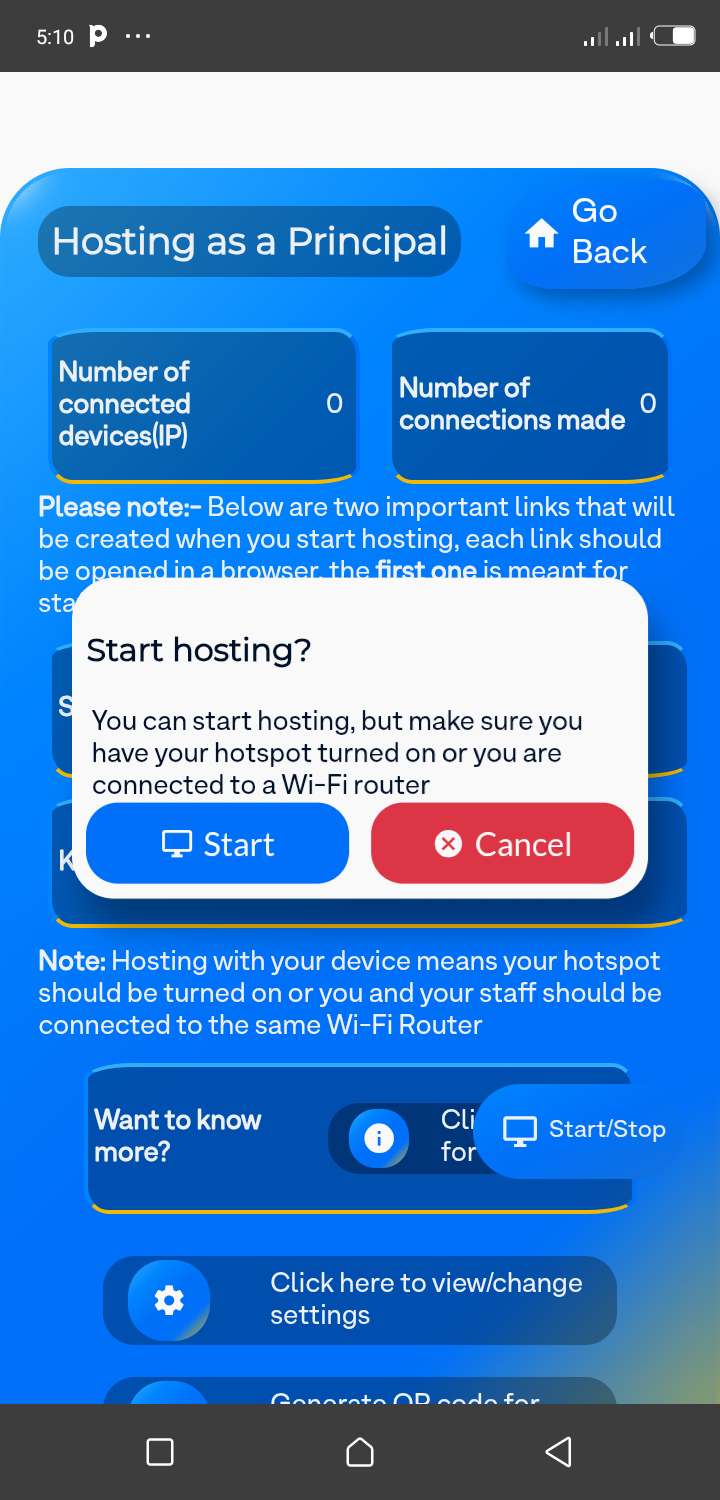
SmartGrader Device Requirements
You Do NOT Need Expensive Servers to Start
With SmartGrader, that is not necessary.
- SmartGrader was designed specifically for schools in environments where:
- internet maybe unstable
- electricity may fluctuate
- and budgets maybe limited
Instead of requiring a dedicated server room, SmartGrader can run smoothly using a normal Android phone connected to your school’s local network (Wi-Fi router).
This means many schools can start using SmartGrader with devices they already have.
Even a clean second-hand Android phone can work well as a SmartGrader server device if it is properly prepared and dedicated mainly for exam use.
“No be everybody get money for expensive computer room. Use wetin you get start first.” 🇳🇬
Recommended Phone RAM Based on CBT Hall Size
These recommendations are based primarily on the number of devices connected at the same time during an exam, not the total number of students enrolled in the school.
The number of devices connected during exams affects the type of Android phone recommended.
NOTE: Any phone using Android 6 (Phones from 2016 till date) and above is recommended, SmartGrader may not perform well on extremely old Android phones, like the ones that use Android 5 and below
1. Small CBT Hall (Less than 50–60 devices)
- Recommended:
- 2GB or 3GB RAM Android phone

- Suitable for who?
- Small schools
- Small exam halls for cbt
- Basic CBT environments
- An exam lab with few computers or devices (maximum of 60 devices)
2. Medium CBT Hall (50–100 devices)
- Recommended:
- 4GB RAM Android phone

- Suitable for who?
- Medium sized schools
- Larger exam sessions
- Better multitasking and smoother performance
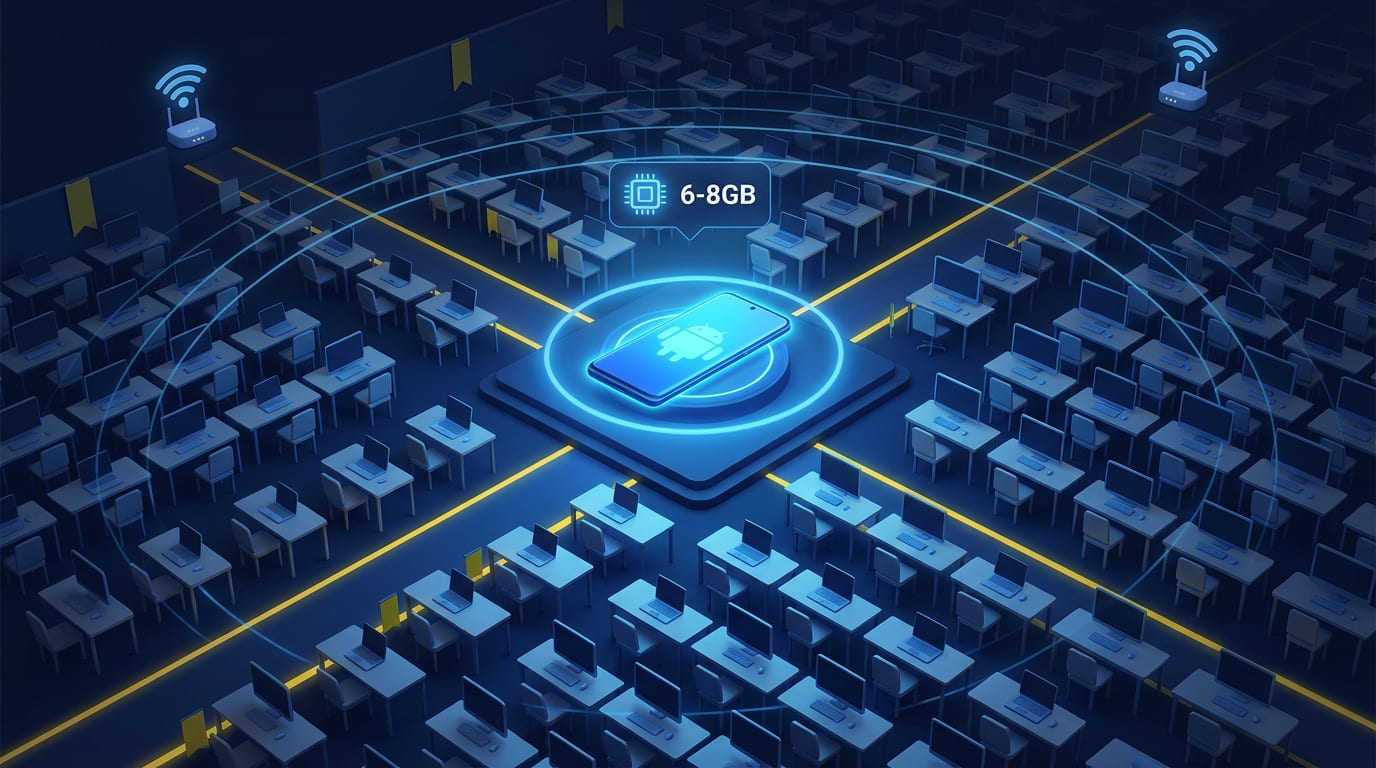
3. Large CBT Hall (100–200 devices)
- Recommended:
- 6GB RAM Android phone minimum, 8GB RAM for better performance
- Suitable for who?
- Large exam halls
- A school running multiple exam sessions
- Better multitasking and smoother performance
4. Very Large CBT Hall (Over 200 devices)
- Recommended:
- 8GB RAM Android phone, schools with over 300 devices can go above 8GB RAM

- Suitable for who?
- Very Large schools
- Heavy concurrent usage
- Best performance
- Large Scale CBT operations
NOTE: “As students plenty, device wey dey run SmartGrader suppose strong pass small.” 🇳🇬
As long as the phone can last for a long period, you are good to go.
Even if the phone is second-hand, the battery health should still be decent.
- For long school exam sessions lasting many hours, schools are advised to:
- keep the device charged
- use a power bank
- OR
- connect to backup power if available
If you do not have a phone with a good battery, you can also purchase a power bank as a backup plan during extended exams
The main phone that will act as the server or host for CBT needs to be an ANDROID Phone.
Android Phones are also recommended for staff who would like to use the SmartGrader mobile app.
Students do not need phones, they can use the browser on any device (E.g a laptop, phone, tablet, desktop) that the school provides.
The Teachers can also use the browser on their laptops to access SmartGrader for more features.
Staff with iPhones/iPads/Tablets can use their browsers instead.
1. You might not need a brand new phone. A "second-hand" phone that still works well can be used as the server.
2. The server phone for the principal should be dedicated. It should be used only for SmartGrader
3. Formatting or flashing the phone and deleting unnecessary apps can also boost performance
Schools with Less Than 500 Students
- Many schools in this category can comfortably use:
- 2GB RAM phones
- OR
- 4GB RAM phones
- The most important factor is usually:
- how many devices are connected at the same time during exams.
- For example:
- A school with 400 students may only run exams for 40 students at once.
In this case, a properly optimized 2GB or 4GB device may still perform very well.
Schools with Over 500–1000+ Students
- Larger schools are advised to use:
- 6GB RAM phones
- OR
- 8GB RAM phones
- This helps improve:
- stability
- speed
- and overall performance during large exam sessions
For best performance, SmartGrader should ideally run on a dedicated Android phone.
Why?: This is because a phone without social media apps, a sim card or even internet access gives plenty of room for SmartGrader to perform well, especially in large exams.
Giving the phone access to internet can even slow down the network and hurt performance.
NOTE: INTERNET IS NOT NEEDED DURING EXAMS.
- This phone should preferably:
- contain very few apps
- avoid unnecessary background activity
- and be used mainly for SmartGrader operations
- Many schools choose to:
- format or factory reset
- wipe,
- OR
- flash the phone before installing SmartGrader
- The phone does NOT need:
- a SIM Card,
- social media apps,
- games
- or unnecessary software
“Phone wey no carry load dey work better.” 🇳🇬
During exams, the SmartGrader server phone and Wi-Fi router should ideally NOT use internet or mobile data.
- Turning OFF internet during exams helps:
- reduce distractions,
- improve local network performance,
- reduce unnecessary background traffic,
- and improve stability.
“Na local connection dey do the heavy work, internet no be the main thing during exam.” 🇳🇬
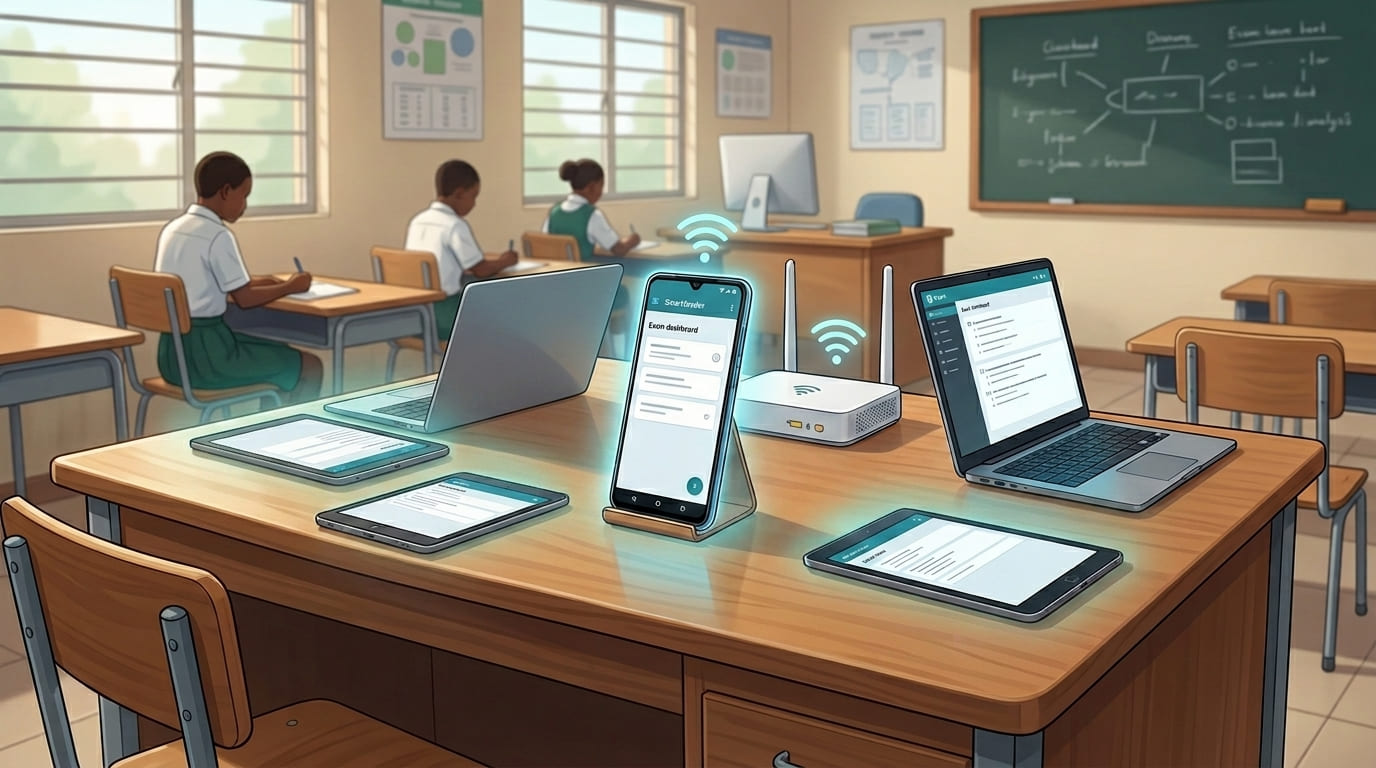
Important Disclaimer: SmartGrader does not officially promote, partner with, or advertise any phone brand or manufacturer.
- The devices listed below are simply examples of affordable Android phones that may work well for SmartGrader deployments based on:
- your school size (especially student Population)
- number of devices in the CBT hall
- and expected exam traffic
Phone prices and availability may vary depending on your location and market conditions.
Schools are free to use any Android device that meets the recommended requirements for their deployment size.
“No need to chase expensive phones before you start.” 🇳🇬
Many schools assume they need the latest or most expensive smartphones before they can run SmartGrader smoothly.
- For SmartGrader deployments, what matters most is usually:
- stable Wi-Fi connection,
- enough RAM,
- decent battery health,
- and a clean device with fewer background apps.
- For best results, schools are advised to:
- dedicate the phone mainly to SmartGrader,
- reduce necessary apps,
- keep phone storage reasonably free,
- and avoid heavy usage of the phone server during exams
“Na stable phone better pass expensive phone.” 🇳🇬
The examples below are not strict requirements.
Small CBT Hall (Less than 50–60 devices)
- Recommended RAM for the phone
- 2GB RAM
- OR
- 4GB RAM
- Suitable for:
- Small private Schools
- Tutorial centers
- Small computer labs
- Small internal assessments
- Examples of phones you can buy:
- Tecno Spark Series (2GB/4GB RAM variants)
- Itel P Series
- Redmi A series
- Infinix Smart series
- Samsung A0 series
Medium CBT Hall (50–100 Devices)
- Recommended RAM for the phone:
- 4GB RAM
- Suitable for:
- Medium sized schools
- Larger exam sessions
- Schools conducting multiple assessments regularly
- Examples of phones you can buy:
- Redmi note series (4GB RAM variants)
- Samsung A Series
- Tecno Camon series
- Infinix Hot series (e.g Hot 8, 9 and above)
- Nokia Android devices (4GB RAM variants)
“As traffic increase, device too suppose balance well.” 🇳🇬
Large CBT Hall (100–200 Devices)
- Recommended RAM for the phone
- 6GB RAM
- Suitable for:
- Large schools
- Busy CBT environments
- Schools running multiple active sessions
- Examples of phones you can buy:
- Redmi Note series (6GB RAM variants)
- Samsung A series
- Tecno Camon higher RAM variants
- Infinix Note series
- Poco devices
- At this level, schools are advised to use stronger devices with:
- stable batteries,
- better cooling,
- and more available cooling.
Very Large CBT Hall (200+ Devices)
- Recommended RAM for the phone
- 8GB RAM and above
- Suitable for:
- Schools with large student populations (1000 - 2000 students and above)
- Large CBT halls
- Heavy concurrent exam traffic
- Examples of phones you can buy:
- Higher-end Infinix Note variants like the Infinix Note 30 pro
- Samsung A series (8GB variants)
- Redmi Note Pro series
- Poco X series
- Dedicated Android tablets with 8GB RAM

The SmartGrader server device should always have stable power during exams.
- Even when using second-hand or budget Android phones, schools should ensure:
- the battery is still reasonably healthy,
- charging ports are working properly,
- and the device can stay active throughout the exam session.
- For longer exams or full-day CBT sessions, schools are advised to:
- fully charge the device before exams begin,
- keep a power bank available,
- or connect the device to backup power where possible.
- If possible:
- avoid weak charging cables,
- avoid faulty chargers,
- and avoid overheating the phone during long sessions.
“Better battery na peace of mind during exams.” 🇳🇬
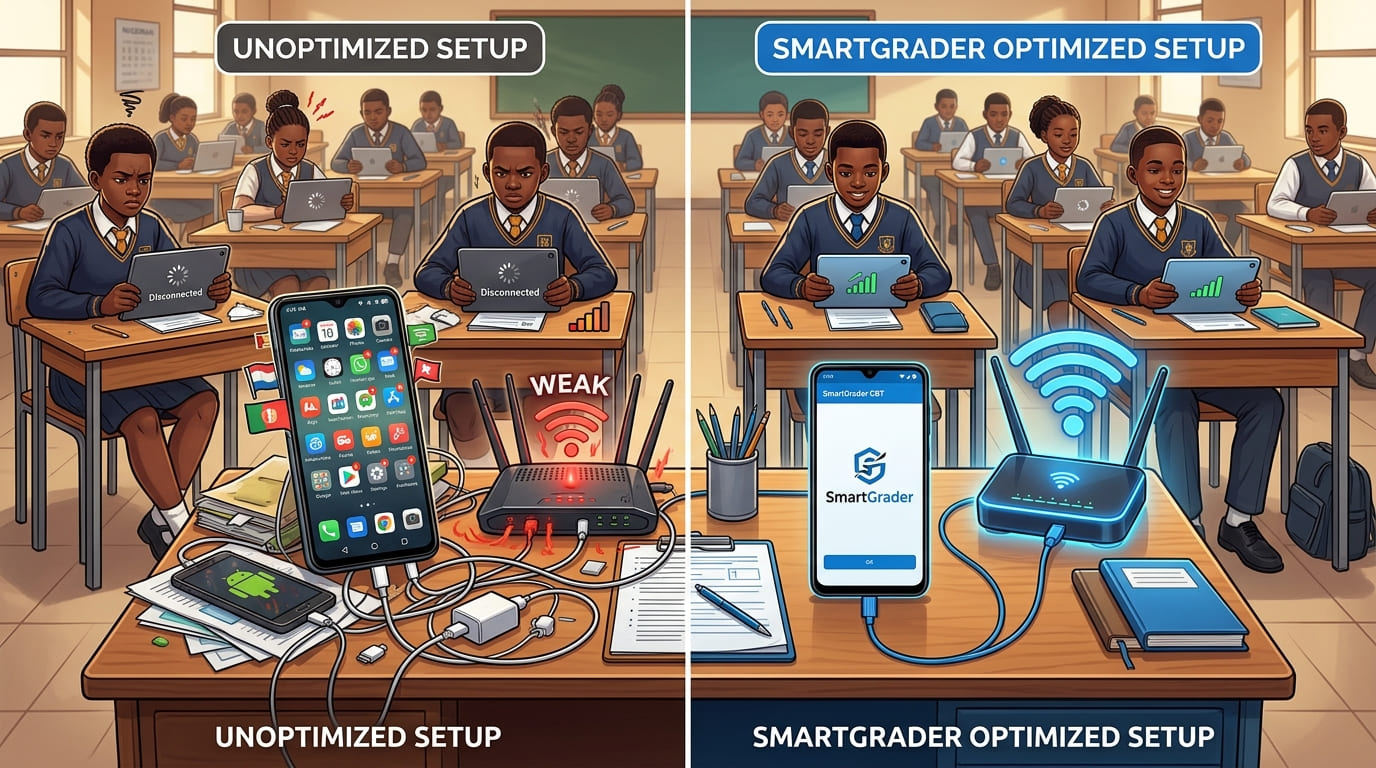
To help SmartGrader run smoothly during exams, schools should avoid some common setup mistakes.
1. Avoid Using Personal Phones Full of Apps
- Phones overloaded with:
- social media apps and games,
- video editors,
- heavy downloads and background activities May experience slower performance during exams
2. Avoid Turning ON Mobile Data During Exams
During active exam sessions, the SmartGrader server device and router should ideally focus only on the local school network.- Using internet or mobile data unnecessarily during exams may:
- increase background traffic,
- trigger automatic updates,
- create distractions,
- and reduce local network performance. SmartGrader is designed primarily for local offline communication inside the school.
“Na local network dey carry the real work during exams.” 🇳🇬
3. Avoid Overheating the Device
Keeping the server phone under direct sunlight or inside hot environments for long periods may affect performance.- For best results:
- place the device in a cool area,
- avoid covering ventilation areas,
- and avoid excessive charging heat during heavy usage.
4. Avoid Weak or Poor-Quality Routers
The Wi-Fi router is an important part of the SmartGrader setup.- Using weak or unstable routers may affect:
- student connectivity,
- exam loading speed,
- and overall network stability.
- For larger halls, schools may need:
- stronger routers,
- additional access points,
- or Wi-Fi extenders.
5. Avoid Installing Too Many Extra Apps
The SmartGrader server phone should remain as clean as possible.- Installing many unnecessary apps may:
- reduce available RAM,
- increase background activity,
- and affect performance over time. Simple setups usually perform best.
“Simple setup fit save plenty stress later.” 🇳🇬
You do NOT need an expensive server room, advanced technical knowledge, or a large IT team before you can start running reliable CBT exams.
Whether you are a small private school, a tutorial centre, a growing secondary school or an already established one.
SmartGrader can scale with your school needs
The goal is not to complicate school operations.
- The goal is to make digital exams:
- Simpler
- Faster
- Secure
- More reliable and easier to manage
To continue your SmartGrader setup journey, follow the guides below for step-by-step explanations, tutorials, videos, and deployment walkthroughs.
Setup overview
Install the app on the principal's device
Download and install SmartGrader on an Android phone or tablet. This device becomes the school's central authority.
Create your school profile
Set up your school name, logo, and admin credentials. Everything is stored locally on the device.
Set up your local network
Connect a WiFi router to the principal's device. Students and staff will connect to this network during exams.
Add staff and register students
Create teacher accounts and register students in the app. Teachers can then create exams from their own dashboard.
Run your first exam
Students open a browser, log in via the local network, and begin. Results are ready the moment the last student submits.
Quick links
Resources & community